Applies To
Windows Operating System
- Windows 10
- Windows 10
- Windows 7
Microsoft Office System
- Office 365
- Office 2016
- Office 2013
Symptom
ForecastX is not displayed on the Excel Toolbar anymore.
Solution
The Excel Add-In needs to be enabled.
- Go to File > Options.
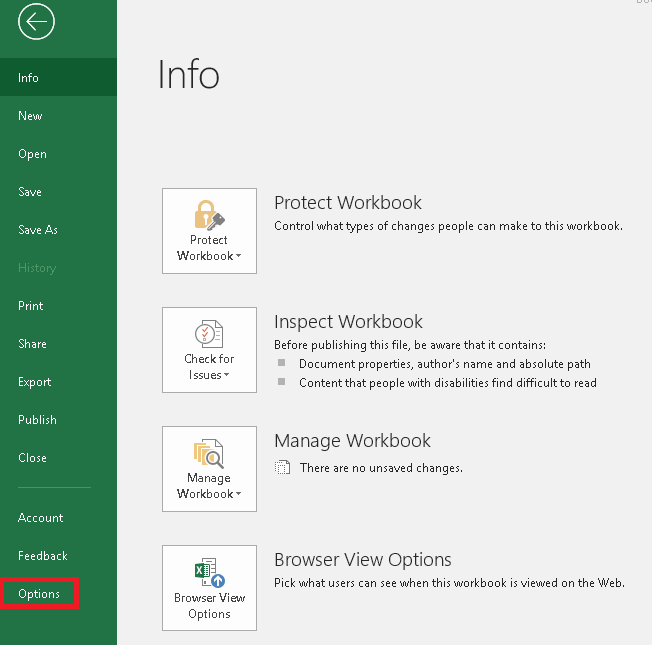
- In Excel options, click Add-ins.
- Under the Add-ins menu, from the Manage field, select Excel Add-ins, and then click Go.
Note. You can see in the previous image that Forecastxtoolbar is under Inactive Application Add-Ins - In the Excel Add-ins window, make sure that ForecastX checkbox is enabled and click OK.
- If succesfully activated, you should be able to visualize the Forecastxtoolbar into the Active Application Add-Ins
Comments
0 comments
Please sign in to leave a comment.