The Grouping feature is beneficial when you would like to view product-family forecasts. For example, if a group of products has an especially small demand individually, it may be more practical to forecast the group as a whole (or one total product) in order to see a more accurate forecast.
There are two different methods for grouping your items:
| Group Forecast | Description |
| Grand Total | When this option is selected, no hierarchy can be defined. Using this option will generate only one grouped total that includes all the items in your data set. |
| Hierarchy | When the Grand Total option is not selected, you can define a hierarchy using the labels configured in the Data Capture window. This will create totals for each of the different values within those selected labels. |
There are two features that are beneficial in Group Forecast:
| Feature | Description |
|
Multi-Level Grouping |
Up to three levels of grouping can be supported. The number of supported levels is defined by the ForecastX Edition you are running. For more information, see Software Editions 12. Label information must be preloaded prior to grouping. |
|
On-fly Rebalance |
This feature allows any changes made to the forecast to be distributed accordingly throughout the levels of a defined hierarchy when a Report uses the Group by option. On-fly rebalance can be ran after the report has been created. |
To perform a Group forecast:
- Click the Grouping tab. The Grouping window appears.
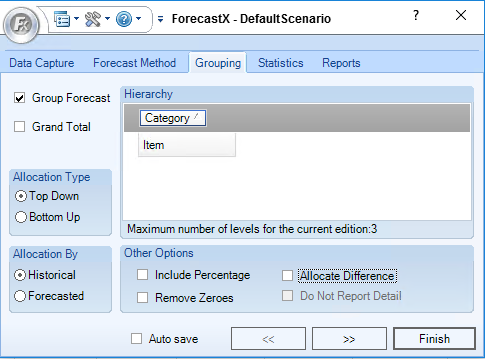
- Select Grand Total to have only one group; all Series are grouped into one Series. If you select this option, no hierarchy is available.
-
In the Hierarchy area, you can drag and drop your column headers to select the fields you want to group your data by. Up to three different fields to group by fields simultaneously can be selected, but the number of columns you group your data by cannot be the same as the number of labels configured in the Data Capture section.
Note: The available column can be selected in any order. They do not need to be in the same order as your data. - In the Allocation Type area, select whether you would like to perform a TopDown or BottomUp forecast.
Allocation Description Top Down Sums up the detail level series, forecast in the highest level, and then allocate the forecasted values down to lower level. Bottom Up Forecasts the detail level first, and then sums up both the Historical and Forecasted values to the Aggregated level. - In the Allocation By area, select if you would like your forecast to be allocated by either Historical or Forecasted values.
Allocated by Description Historical Uses the historical weight of each series to calculate the Allocation percentage. All Forecasted periods for a Series use the same percentage. Forecasted Uses the forecasted values in the lower level to calculate the Allocation percentage. Each forecasted period for a series has a different percentage. It is enabled regardless of the Allocation type. - In the Other Options area, select one or more options if you would like to:
Feature Description Include Percentage Include the Allocation percentage in the Standard report. This feature is only available for Top Down Allocation type. Remove Zeros Removes zeros when forecasting and calculating the Allocation percentage. When selected, leading zeros are removed prior to forecasting, as well as, calculating the Allocation percentage for the Historical Allocated by Type. Allocate Difference Used to distribute any remaining top-level forecast based on the allocation percentage for each Record. Do Not Report Detail Determines whether or not the Detail Series is reported. This feature is applied to the Bottom Up Allocation type. - Click Finish.
On-Fly Rebalance
ForecastX can rebalance hierarchies without reprocessing your data. If On-Fly Rebalance is enabled, after you generate your report that has a hierarchy applied to it, any changes made to the upper levels can be driven down to the lower levels and vice versa without generating a new report. The On-Fly Rebalance is disabled by default.
To enable the On-Fly Rebalance, click the Standard tab in the Reports tab and enable the On-Fly Rebalance checkbox.
Note: This feature is only available in the Xpert Tool Kit.
If On-Fly Rebalance is enabled and a Standard report has been generated, the On-Fly Rebalance button is enabled in the toolbar. This button is used to rebalance the created hierarchy after changes have been made to the Forecast, so that any changes made to the forecast at any level can be appropriately driven down or up. There are two ways to rebalance a hierarchy:
| Option | Description |
|
Based on selected series |
Any adjustments made to the forecasted values in the selected series are Allocated down to the lower level and summed up to the higher level. A menu with all Series is provided. The current activated Series is selected by default. If no Series is being worked on, then the first series is selected. When used, the new forecasted values in this Series are allocated down to the lower level and summed up to the higher level. |
|
Based on selected level |
Any adjustments made to the forecasted values in the selected level are Allocated down to the lower level and summed up to the higher level. A menu with all Levels is provided. The current activated Level is selected by default. If no Level is being worked on, then the first Level is selected. When used, the new forecasted values in this Level are allocated down to the lower level and summed up to the higher level. |
Comments
0 comments
Please sign in to leave a comment.