ForecastX provides additional features when generating reports. The following sections detail the options available when clicking the Scenario or Tools buttons, as well as additional help.
Fx
The Fx button allows you to access the other menu tools as well as access the Settings, restore to default, and close ForecastX.
To configure the Scenario’s settings:
- Click the Fx menu and select Settings. The Scenario Settings window appears.
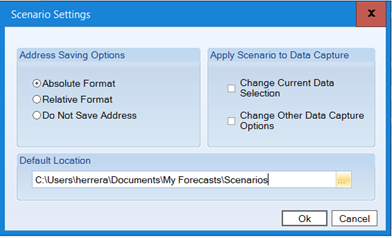
- In the Address Saving Options, determine how the setting is saved.
Save Option Description Absolute Format Stores all ranges using an absolute notation; this means it will include the reference to the filename and use an absolute notation for cell ranges. For example, this is a range stored in absolute format [ForecastXTrainingSet.xls]ProCast!$A$1:$AF$7]. Relative Format Stores all ranges using a relative notation; this means it will only store cells information in a relative format. For example, this is a range stored in a relative format: A1:AF7. Do Not Save Address No ranges are saved in the Scenario.
Note: If your scenario configuration is not storing your addresses as configured for addresses used in the Data Capture tab, then verify the Apply Scenario to Data Capture section options. - In the Apply Scenario to Data Capture area, select how the data is applied to the Scenario. ForecastX recognizes your data's layout and characteristics. The settings are used to override the IDR so that the Auto save feature can remember your changes in the Data Capture tab when a scenario is loaded. The following table details what each option means.
Option Description Change Current Data Selection Impacts the range of data to be forecasted and also the checkbox to select if the data is organized in rows or columns. When this is enabled, the IDR will be overridden, and ForecastX remembers the last saved options for the Range to be forecasted and the data organization option. When this option is disabled, the IDR is enabled, and the layout of your data is detected automatically.
Note: The IDR feature works when no range has been selected manually and the user only selects a single cell inside the data to be forecasted.Change Other Data Capture Options Impacts the Contains Dates and Periodicity features inside the Data capture tab. When this option is disabled, the Periodicity and the Contains Dates checkbox are automatically detected using IDR every time the application is opened. When the option is enabled, the application will remember the last setting saved for the two sections mentioned. - In the Default Location area, this is the directory where ForecastX looks for scenario files. All the Scenario files saved in this directory are listed under the Default Location option in the Scenario menu in the software's main window.
- Click Ok.
Scenario
ForecastX enables you to create forecasting scenarios to use in what-if analysis. When you create a scenario, you are simulating what the future might look like and can then study several potential outcomes. You can study various outcomes by creating and saving several scenarios using different forecasting method parameters.
You use the Scenario button to save your current settings as a new scenario or edit an existing scenario. This allows you to save the current scenario with the same functionality as Auto Save.
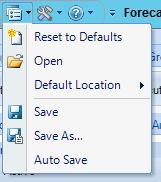
The table below details what each feature means:
|
Scenario Feature |
Description |
| Reset to defaults |
Resets all the options and parameters inside the application to the defaults as if the application was just installed. Note: Invoking this feature will not change the options in the Scenario Management settings; this includes the default location for the scenario files. |
| Open | Used to open a scenario file (.fx7 file extension only) that has been saved previously. Once a scenario file is loaded the application's title bar will change to reflect the name of the open scenario and all the options and parameters will default to that scenarios configuration. |
| Default Location | Display all the scenario files that have been saved in the current default location. The default location is a directory and can be configured in the Setting option from the Scenario menu. This menu is a way to easily change scenarios that have been saved for future use. |
| Save | Saves unsaved changes in any options or parameter in all the application, these changes will be saved to the currently open scenario. |
| Save As... |
Saves all the current settings from the application in a Scenario file. Scenario files have an .fx7 extension. Note: This feature is not available in the ForecastX LITE version. |
| Auto Save |
Specifies whether the Wizard should automatically save changes made to the currently active scenario. When this option is enabled, all changes to any option in the application, like ranges, parameters, reports to generate will be automatically saved. |
Tools
The Tools menu contains options to configure the way ForecastX and the reports are generated regarding security and color customizing.
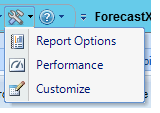
The table below details what the Tools features.
| Tools Feature | Description |
| Report Options |
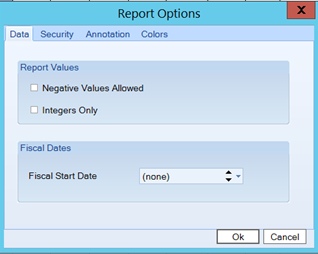
This section contains options that affect the generated reports in different areas: Data - Contains configurations regarding: - Negative Values Allowed - Select this option to include negative values, rather than dismissing them as 0, which is the default. Note: When grouping forecast is enabled, this option is checked and disabled. - Integers Only - View all numbers as integers rather than real numbers with a fixed number of decimal places. - Fiscal Start Date - In the Executive report, the Forecast Table uses January or first week as the starting point of a year, if this is the behavior you expect leave this field empty. To change the date on which your fiscal year starts just configure it in this field.
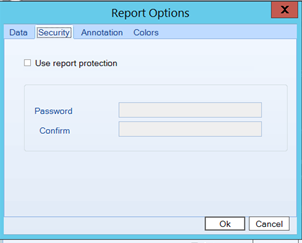
Security - Contains security related options. When a password is defined that password will be required to unlock the sheet the report is in. If no password is set the sheet can be unlocked without any restriction. - Use report protection - This option lets you know if the reports generated will be protected.
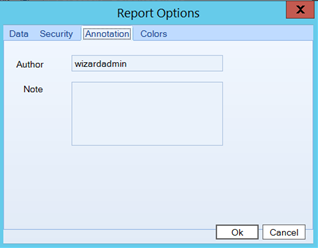
Note: This feature is not available in the ForecastX LITE version. Annotation - Contains general settings. - Author - Name used in the Executive and Audit reports in the Reports Detail Section. - Note - Note used in the Executive and Audit reports in the Reports Detail section.
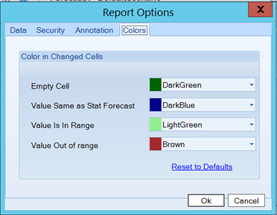
Colors - This tab contains options to configure the color the Adjust opinion line will display in different situations in the Standard and Standard DRP reports:
- Empty Cell - The default color for cells that can be edited by the user. - Value Same as Stat Forecast - Defines the color of a cell when it has the same value as the original forecast. This will be observed when reconciling or running, On-Fly DRP or On-Fly Rebalance, for example. - Value Is In Range - Defines the color of a cell when a value is entered into the Adjust opinion line and it is within the Upper and Lower Limit. - Value 0ut of Range - Defines the color of a cell when a value is entered into the Adjust opinion line and it is greater than the Upper or less than the Lower Limit. |
| Performance |
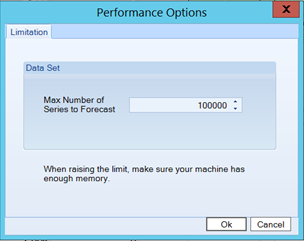
Used to configure how many series ForecastX can process simultaneously. If your computer has less RAM memory, this setting should be lower. Now you can determine the max number of series to forecast. You will find this option in the Customize windows. The default is 10,000.
|
| Customize |
Used to configure changes in the User Interface. Currently, you can select which skin to apply to the whole application. |
Help
The Help menu consists of additional features for efficiently using ForecastX.
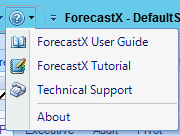
The following table details the features available within Help.
| Feature | Description |
| ForecastX User Guide |
Opens the ForecastX User Guide. |
| ForecastX User Tutorial | Opens the ForecastX Tutorial. |
|
Technical Support |
Contact John Galt Solutions Technical Support team. |
| About | Information about the ForecastX edition and version number. |
Comments
0 comments
Please sign in to leave a comment.